About Sensei AI Copilot

Built for the Moments That Matter in Interviews

Interviews move fast. Questions change, follow-ups arrive unexpectedly, and technical prompts demand clear thinking. We created Sensei AI Copilot to make useful guidance available during those moments. Our real-time AI interview assistant responds to audio coming from your computer, analyzes screenshots, and uses your resume and target role to suggest relevant answers.

about

Why we are the best AI interview assistant for finance and tech job seekers.

Top AI Interview Assistant for Real-Time Responses and Mock Interview Practice

5

High-speed

5

High-quality

5

Highlight

feature

Made for Real Interviews, Not Just Practice.

Preparation matters, but real interviews rarely follow a script. Sensei AI Copilot keeps up with spoken questions through computer audio and suggests concise talking points as the conversation unfolds. For coding tasks, it can analyze screenshots and help you work through algorithms, edge cases, and system design trade-offs. Choose a private desktop overlay or view live responses on your phone with Dual-Device Mode.

Support Interview Platforms 99%
Answer Accuracy 95%

Support That Goes Beyond Setup.

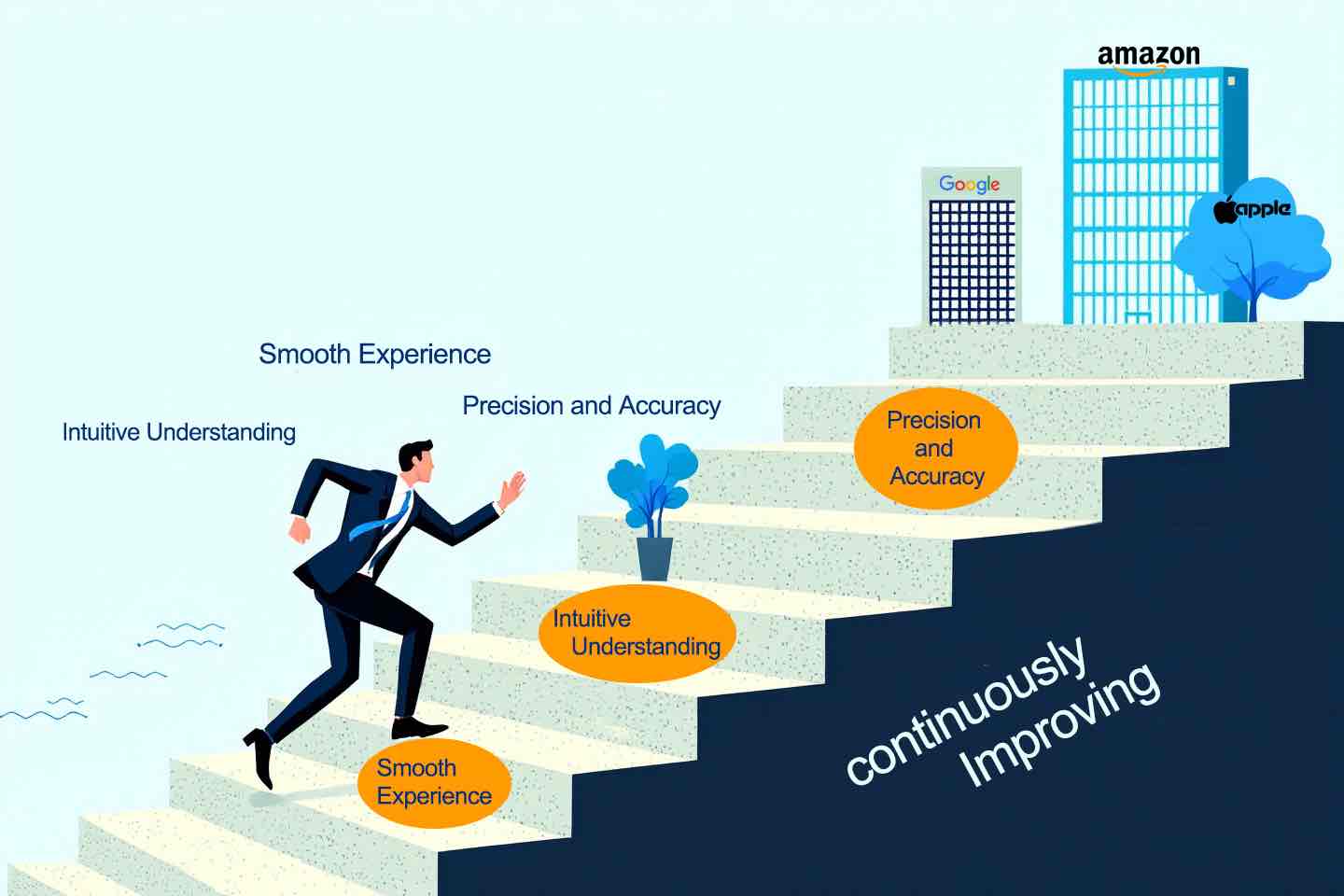
An AI interview assistant should be straightforward to set up and dependable to use. We focus on practical guidance and continuous improvements, from audio configuration and meeting-platform compatibility to screenshot workflows and AI model choices. If you need help with your account, setup, or subscription, our support page and community are here to help.
feature

Sensei AI FAQ: Everything You Need to Know

Have questions about your Sensei AI interview copilot, pricing, login, or setup? Explore the answers below, contact our support team, or join our Discord community.

Sensei AI Copilot is a real-time AI interview assistant for live conversations, technical interviews, and practice sessions. It responds to interview questions coming through your computer audio, uses your resume and job description to personalize answer suggestions, and can analyze screenshots of coding tasks, diagrams, and other visual prompts.

You can use Sensei AI during behavioral interviews, coding challenges, system design discussions, and mock interviews.
Yes. Sensei AI offers a free 30-minute trial so you can test real-time interview assistance, coding support, screenshot analysis, and personalized answers before purchasing a plan. Your trial begins when you activate it. Gemini 3 Flash is available for trial use, while paid plans unlock additional advanced AI models.
Sensei AI pricing includes monthly, quarterly, annual, and lifetime plans. Your options differ by membership duration and access to AI models. Visit the Sensei AI Pricing section to review current prices and choose the plan that works best for your interview needs.
Download the latest Sensei AI desktop app and sign in with your registered email address. If you've purchased a membership, use the email address linked to your purchase so the app can recognize your plan.

The latest desktop app uses email-based login instead of the previous activation-code login system. If you still see an activation-code prompt, install the latest version.
Both. Sensei AI Copilot provides real-time answer suggestions during live interviews and supports mock interview practice before your actual interview. It can help with HR screenings, behavioral questions, technical discussions, coding interviews, and system design follow-ups.
Yes. Sensei AI works alongside Zoom, Google Meet, Microsoft Teams, Webex, and other supported online interview platforms. Desktop versions are available for macOS, Windows, and Linux.

To check your audio setup, enable listening in Sensei AI, play a YouTube video on your computer, and confirm that the AI responds to the computer audio. Zoom desktop users must configure one required setting to ensure absolute invisibility during screen sharing. Other supported meeting platforms and browser-based Zoom meetings do not require this additional setting.
No. Sensei AI's desktop overlay is completely invisible to others during supported screen-sharing sessions and recordings, remaining visible solely on your own computer—even when sharing your entire screen.

The Zoom desktop app requires one required setting. Other supported meeting platforms and browser-based meetings, including Zoom in a browser, require no extra settings. You can also view live answers seamlessly on your phone through Dual-Device Mode.
Yes. Sensei AI's coding copilot can analyze screenshots of coding problems, suggest solution approaches, and explain algorithms, data structures, debugging steps, time and space complexity, and edge cases.

For system design interviews, it can help organize discussions around architecture, databases, scalability, bottlenecks, and technical trade-offs.
Sensei AI offers three screenshot modes:

1. Auto Answer: Capture one screenshot and receive an immediate AI response based on your preset instructions.
2. Manual Control: Capture up to six screenshots, then type a custom prompt or use long-press speech-to-text before sending them to the AI.
3. Auto-Interval: Set a time interval for automatic screenshots and AI-generated responses.

These modes can also be used when you view answers on your phone through Dual-Device Mode.
The current Sensei AI Copilot is a downloadable desktop app for macOS, Windows, and Linux, rather than a Chrome extension. The desktop app supports computer-audio listening, screenshot analysis, and an interview answer overlay. It also works with Dual-Device Mode for viewing live answers on your phone. If you're following an older Sensei AI Chrome extension guide, use the current desktop app instructions instead.
Yes. For assessments involving strict desktop-monitoring software or locked browsers, Sensei AI provides Dual-Device Mode, where the assistant runs on your computer while live AI responses are displayed securely on your phone.

For regular browser-based assessments using the desktop overlay, ensure two requirements are met:
1. The test runs in a standard web browser rather than a dedicated monitoring client or locked browser.
2. Setup is completed prior to the test. Do not open Settings or use Cmd/Ctrl + \ to toggle app visibility once the test has started.
Yes. Add your resume, the job description, and any relevant preparation notes before your interview. Sensei AI uses this context to create personalized answer suggestions, role-specific guidance, and examples that reflect your experience. You can also use custom instructions to control answer length, tone, and detail.
Sensei AI offers Gemini 3 Flash for free-trial use and fast spoken interview questions. Paid plans unlock advanced model choices including GPT-6.1 Sol, Claude Opus 5.5, Gemini 4 Argon, and Grok-4.7.

For rapid behavioral questions, Gemini 3 Flash is a practical starting point. For complex coding, screenshot analysis, and system design, consider an advanced model such as Claude Opus 5.5, GPT-6.1 Sol, or Gemini 4 Argon.
Yes. Sensei AI supports 30+ languages, allowing you to receive real-time AI interview assistance in your preferred language. It can help with multilingual interviews, spoken questions, and personalized answers across supported languages.
Explore the Sensei AI reviews and product walkthroughs on our website, along with guides comparing AI interview assistants such as Final Round AI, Parakeet AI, Verve AI, and LockedIn AI. When comparing products, consider real-time interview support, model selection, coding features, screen sharing, pricing, and the setup required for your interview platform.
Yes. Sensei AI's Dual-Device Mode lets the app run on your desktop while AI-generated answers appear on your phone. It can be used with live interview audio and supported screenshot workflows, including Auto Answer, Manual Control, and Auto-Interval.

The phone displays incoming answers in real time; it does not provide a replay of previous responses.


Ready to Try Sensei AI Copilot in Your Next Interview?